How to Hide Courses, Specific Lesson Modules, and Sections
To help students stay focused on what they need to work on, teachers and admins can easily hide parts of the program. For example, if a student achieved a high score in the ELD1 Foundational Literacy Skills Entry assessment, the teacher may choose to have the student skip this lesson module. By hiding this module, the student will no longer see this lesson module in Language Tree.
From the homepage, select the course (Newcomers, ELD1, or ELD2) that you would like to adjust visibility.
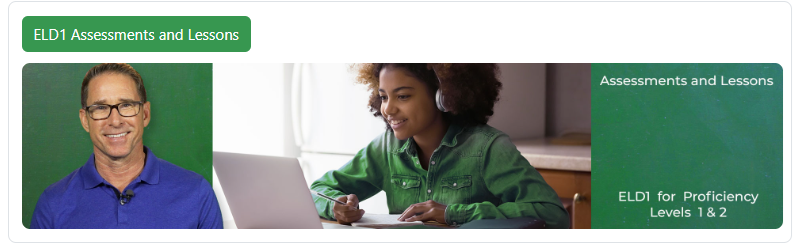
You will see the Visibility tab when logged in as a teacher or an admin. Go to that tab.
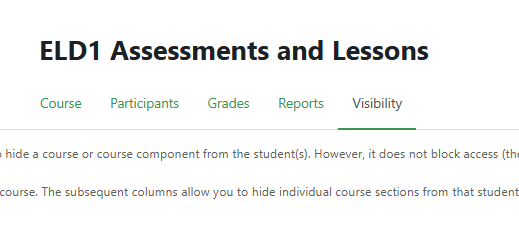
From this screen, teachers can select or deselect what each student sees. The first selectable column (Dashboard course) refers to the entire course (e.g., ELD1). Hide the full course and all its components from a student or group by unchecking the box. The following columns are specific sections or lesson modules inside that course that can be hidden.
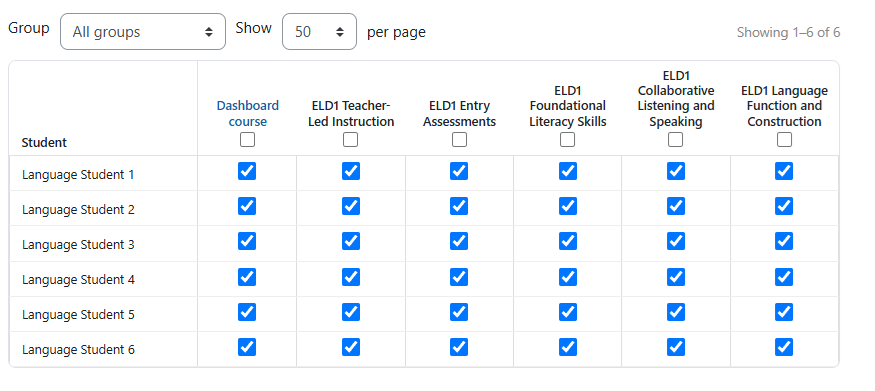
Administrators get an extra level of control. They can toggle between student- and group-level changes. Click on Group view to hide areas in the program for multiple groups/classes. Teachers can only make changes at the student view level.
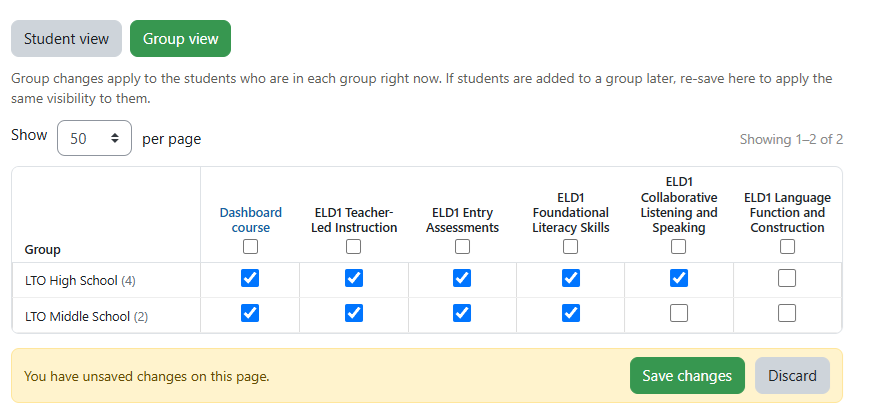
Hiding at the group level will block the student visibility functionality from teachers. It will automatically hide it at the student view level, graying the column out so it can't be changed by teachers.